

Last updated: November 2026 · Written by Nouman Sajjad, Founder, Anchor Web Agency
What is Google My Business? It’s the free Google tool, now called Google Business Profile, that controls the box of information people see when they search for your business on Google Search or Google Maps. If you’ve ever looked up a café and seen its opening hours, star rating, photos and a Call button before opening any website, you’ve used one.
Google renamed Google My Business to Google Business Profile in 2021, but plenty of owners and plenty of searches still use the old name, so this guide uses both where it helps. Nouman Sajjad has spent 10+ years building websites and running local SEO for small businesses at Anchor Web Agency, and when a client tells us the phone has gone quiet, their profile is one of the first things we check.
Below you’ll find what a profile is, what it costs, how to get, find, edit and verify one, how Google decides whose profile to show, an optimisation checklist, post ideas, and how to delete a profile if you ever need to. Every platform fact comes from Google’s own Help Centre pages, linked as we go.

What Is Google My Business (Now Called Google Business Profile)?
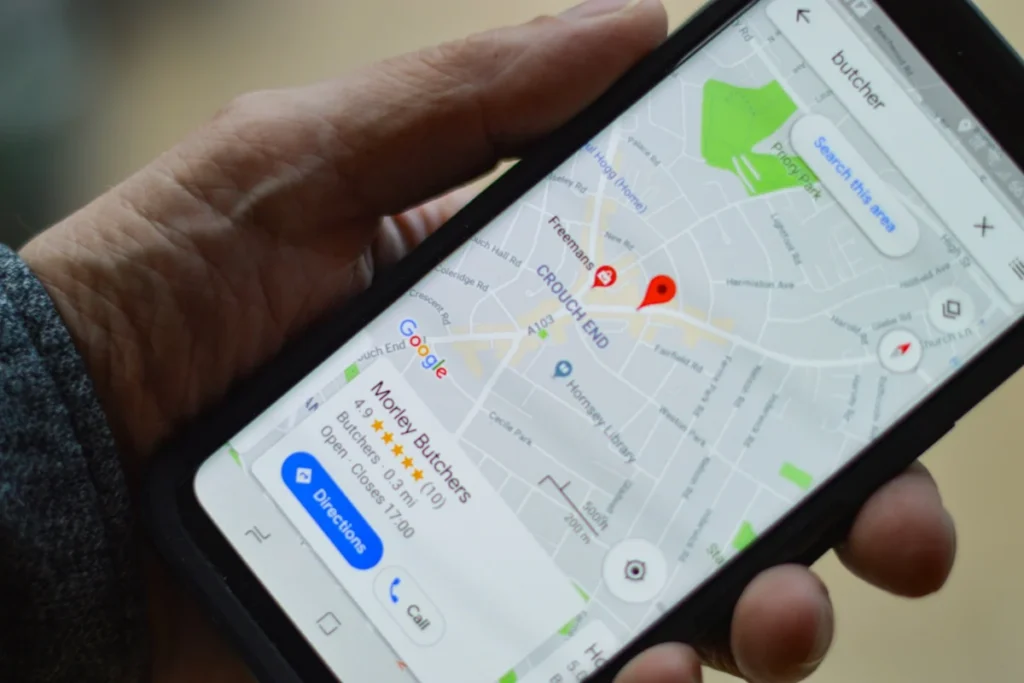
Google My Business, now called Google Business Profile, is a free tool from Google that lets a business manage how it appears on Google Search and Google Maps: its name, address or service area, phone number, website, opening hours, photos, posts and customer reviews. A verified profile can appear in local results and on the map when nearby customers search for what the business offers.
Google describes Business Profile as a way to manage how your business shows up on Maps and Search at no charge, in its getting started guide. Two things are worth separating early. The profile is the public listing customers see. The tool is where you, as the owner or manager, edit that listing, reply to reviews and add posts, and today that happens directly on Google Search and in the Google Maps app rather than in a separate dashboard.
So what’s Google My Business in plain terms? A free shop window on Google that you control. Google also updates profiles using other sources, such as user reports and licensed content, which means a basic listing for your business may already exist without you. If you haven’t claimed it, you don’t control what it says, and that alone is a good reason for any local business to claim its own.
Is Google My Business Free, and What Does It Cost per Month?
Yes, Google Business Profile is free: Google lets you add or claim your business, verify it and manage it at no charge, so the only costs are optional extras such as advertising or paying someone to manage it for you.
Google’s help page on how to add or claim your Business Profile says you can do it at no charge. There is no monthly subscription and no premium tier for the listing itself, and Google’s local ranking guidance says there’s no way to request or pay for a better local ranking. When people search for Google My Business cost per month, or Google Business Profile cost, the honest answer for the profile is £0.
The costs people actually run into are elsewhere: your own time, advertising and management fees. Here’s how they compare.
| Cost | What it covers | What you pay |
|---|---|---|
| Creating and verifying a profile | Adding or claiming your listing on Google | Free |
| Running the profile yourself | Updating hours and photos, posting, replying to reviews | Free, plus your time |
| Ads on Google Maps and Search | Google Ads campaigns started from your profile or Google Ads | The budget you set, billed by Google |
| Paying someone to set it up and manage it | Agency or freelancer fees | Varies; at Anchor it is part of SEO from £199 a month |
Google My Business setup cost is where quotes vary most. Some freelancers charge a one-off fee to claim and fill in a profile. We include Google Business Profile setup and optimisation in our Starter SEO package at £199 a month, and Growth SEO at £399 a month adds a review strategy and citation building on 20+ UK directories. Full details are on our pricing page, rolling monthly with no lock-in.
How Much Do Google My Business Ads Cost?
Google My Business ads cost whatever budget you set, because they are Google Ads campaigns: you choose an average daily budget, usually pay per click, and can change the budget at any time.
Google’s page on how to advertise your business on Google explains that you can start a campaign for a verified profile from the Google Maps app, by tapping Business, then Advertise. Google recommends a daily budget based on your business, but you can choose your own. Not every profile qualifies for this route: Google says service-area businesses and businesses in sensitive categories aren’t eligible to advertise through the Maps app.
Billing follows normal Google Ads rules. With cost-per-click bidding you pay for each click on your ad, and Google’s guidance on how to manage your spend says you won’t be charged more than your monthly charging limit, which is your average daily budget multiplied by 30.4. A campaign left at £10 a day for a whole month can therefore cost up to £304.
For a first campaign on one platform, we recommend £300–£500 a month of ad spend, paid to Google directly, on top of our Starter Ads management fee of £149 a month. Treat that as a testing budget rather than a promise of results.
What Does a Google My Business Page Show Customers?
A Google My Business page, now called a Business Profile, shows customers your business name, location or service area, phone number, website, opening hours, photos, reviews and recent posts, usually beside or above the normal search results.
Google lists the core details as your opening hours, website, phone number and location, and says the location can be a street address, a service area or a place marker depending on your business category. Customers can call, ask for directions or visit your website straight from the listing. For many local searches, that panel is the first impression a business makes, and sometimes the only one.
Service businesses are handled a little differently. Google’s overview for service businesses splits them into service-area businesses, such as a plumber who visits customers, and hybrid businesses, such as a garage that also offers roadside help. A service-area business shows the areas it serves rather than a shopfront, which matters if you work from home and don’t want your house pinned on Google Maps.
Can Every Business Get a Google Business Profile?
No, only businesses that deal with customers in person during their opening hours can get a Google Business Profile, which includes shops, offices and service businesses that travel to their customers.
Google says Business Profiles aren’t for online-only businesses, nor for properties for rent or sale. If you sell purely online and never meet customers face to face, Google points you towards Google Ads instead. Its guidelines for representing your business also ask you to represent the business as it appears in the real world across signage and stationery, keep one profile per business, and choose the fewest categories that describe your core business.
In practice, the businesses that get the most from a profile are trades, salons, clinics, cafés, garages and other local services, where customers search with a town name or “near me”. A web-only shop with no collection point or showroom usually isn’t eligible, however good its products are.
How Do You Get a Google Business Profile?
To get a Google Business Profile, sign in with a Google Account, go to business.google.com/add, add or claim your business, fill in the details and complete the verification method Google offers you.
- Sign in to a Google Account. It can use a Gmail address or your preferred email address. Google suggests linking a company email address, as it makes the profile easier to manage.
- Check whether a listing already exists. Search Google Maps for your business name and town. If an unverified listing appears, select Claim this business, then Manage now.
- Add your business if it isn’t there. Go to business.google.com/add, select Add your business to Google and follow the on-screen instructions.
- Enter accurate details. Use your business name exactly as it appears on your signage, then add your primary category, address or service area, phone number and website.
- Verify. Pick one of the verification options Google shows you and follow the steps.
If Google tells you someone else has already verified the profile, perhaps a previous web designer or a former business partner, request ownership of that profile rather than creating a second one. Duplicate profiles are against Google’s guidelines and split your reviews across two listings.
Which Verification Methods Does Google Offer?
Google offers verification by phone or text, email, live video call, video recording and post, but it decides automatically which of these your profile can use, and that choice can’t be changed.
| Method | How it works | Good to know |
|---|---|---|
| Phone or text | Google calls or texts a code to your business number | Automated phone menus (IVR) won’t receive the code |
| You follow the steps in an email from Google | You need access to the email address shown on screen | |
| Live video call | You show a Google support representative your location and business | Only available during your opening hours |
| Video recording | You record a short video of your location, business and proof that you manage it | Google recommends it if your business is eligible |
| Post | Google posts a code to your business address | Not available for every business |
According to Google’s verification guide, the options depend on your business type, public information, region and opening hours, and some businesses have to verify with more than one method. For video, be ready to show outside signs or a street sign, branded equipment or marketing materials, and proof you manage the business, such as keys to the premises or access to a staff-only area.
Why Is My Google Business Profile Only Visible to Me?
A Google Business Profile is usually only visible to you because it hasn’t been verified yet, and Google says customers can only find a profile on Google after verification is complete.
Google’s guide to finding your business on Google is direct about this: only verified businesses can show their business info on Maps and Search. When you’re signed in, you see your own profile in a management view even if nobody else can. To see what the public sees, Google suggests browsing privately in Google Chrome or Google Maps.
If the profile is verified and still hidden, check two more things. A profile that breaks Google’s guidelines can be disabled or suspended, and it won’t show to other users until the issue is resolved; Google sends a notification to the managing account when that happens. Timing matters too: Google says rankings for new businesses can take up to a month to appear, and edits can take up to three days.
How Do I Find and Access My Google Business Profile?
To find and access your Google Business Profile, sign in to the Google Account that manages it, then search Google for your business name and town, or simply search for “my business”.
Google gives three ways in: search your business name and city on Google Search, search the same on Google Maps, or open the Google Maps app and tap Business at the bottom right. If you manage more than one business in the app, tap the down arrow at the top to switch between them. Businesses with many locations can use Business Profile Manager to handle their profiles in bulk.
The access problem we see most often is the wrong Google Account. A profile set up years ago by a former employee, an old agency or on a personal Gmail address won’t appear when you sign in with your current account. Google’s owner and manager roles exist for exactly this: only owners can add or remove users, and only the primary owner can transfer primary ownership. Keep the business owner as primary owner and add helpers as managers.
How Do I Edit My Google Business Profile?
To edit your Google Business Profile, sign in to the linked Google Account, find your profile on Google Search, select Edit profile, make your changes and select Save, or do the same from the Business tab in the Google Maps app.
Google’s edit guide covers your address, hours, contact details, photos, attributes, description, services and more. Some businesses must verify before they can change anything, and Google reviews certain edits before they go live. Changing your category can also trigger a request to verify again, according to Google’s business category guide, so choose it carefully the first time.
Opening hours deserve the most care. Set special hours for bank holidays and Christmas, and if you close for more than seven days, Google advises marking the business as temporarily closed instead of editing your normal hours. Customers who turn up to a locked door because Google said you were open rarely give you a second chance.
How Does Google Decide Which Profiles to Show?
Google decides which Business Profiles to show mainly on relevance, distance and prominence: how well a profile matches the search, how far the business is from the searcher, and how well known the business is.
Google’s local ranking tips explain each factor. Relevance improves when your profile holds complete, detailed information. Distance is measured from the searcher’s location, or Google’s best estimate of it. Prominence draws on information such as how many websites link to your business and how many reviews you have, and Google says more reviews and positive ratings can help your local ranking.
Distance is the one factor you can’t change. A complete profile won’t beat a competitor two streets from the searcher on every “near me” search, which is why we focus on searches that include your town or service, and why the website behind the profile matters as much as the profile. If you’re in the West Midlands, our local SEO services in Birmingham cover the profile and the website together.
What Should a Google My Business Optimisation Checklist Include?
A Google My Business optimisation checklist should cover verification, an accurate name and contact details, the most specific primary category, opening hours, a clear description, real photos, services, reviews and regular posts.
- Verification: the profile is verified and owned through the business owner’s own Google Account.
- Business name: exactly as it appears on your signage and stationery, with no extra keywords or towns added.
- Primary category: the most specific one Google offers, for example Nail salon rather than Salon. You can’t create your own category.
- Contact details: phone number and website identical to the ones on your own website.
- Opening hours: normal hours plus special hours for bank holidays.
- Description: plain English on what you do, where you do it and who you do it for.
- Photos: real photos in JPG or PNG, between 10 KB and 5 MB, ideally 720 x 720 pixels, as Google’s photo guidelines recommend.
- Services and areas: every service listed, and service areas set if you travel to customers.
- Reviews: a simple way to ask for them, and a reply to each one.
- Posts: at least one update, offer or event a month.
None of these Google My Business tips and tricks is secret, but they’re rarely all done at once. The checklist also supports your wider Google My Business SEO: keeping your business name, address and phone number consistent across your website and online directories gives Google one clear version of your details to trust.
What Can You Post on a Google Business Profile?
You can publish three types of post on a Google Business Profile: Updates for general news, Offers for dated promotions and Events with start and end times, each with optional photos, videos and a button.
Google’s guide to posts on your Business Profile adds some practical detail. Offers need a title and dates, and get a View offer button automatically. Posts can be scheduled, or set to repeat weekly or monthly. Posts older than six months are archived unless you set a date range, and a phone number in the post text might get the post rejected if Google can’t verify it belongs to the business.
The best Google My Business post ideas are specific rather than salesy. A before-and-after photo of a finished kitchen with the town named, a reminder to book boiler servicing before winter, a dated offer for first-time customers in January, an open day, or a short answer to a question you’re asked on the phone every week all make useful Google My Business posts examples. Each one gives a searcher a reason to choose you today.
How Should You Handle Google Reviews on Your Profile?
Handle Google reviews by asking every happy customer for one, making it easy with a review link or QR code, and replying to every review, good or bad, once your profile is verified.
Google’s guide to managing customer reviews confirms that you must verify before you can reply, that replies are checked against Google’s content policies and usually take up to 10 minutes to review, and that you can share a review request link or QR code. Replies also show future customers that someone actually reads the feedback.
Reviews are a big subject on their own, so we cover them in a separate guide on how to get more Google reviews, including what to say when a bad one lands. The short version: we never buy, write or reward reviews, and we’d advise you not to either.
What Are the Benefits of Google Business Profile for a Small Business?
The main benefits of Google Business Profile for a small business are free visibility on Google Search and Maps, a direct way for customers to call, get directions or visit your website, and a public record of reviews that builds trust.
Google’s own list covers keeping accurate information online, interacting with customers through photos, videos and reviews, and directing customers to your website, social media and booking links. The profile also shows performance figures, so you can see how people find and interact with your listing rather than guessing.
What we see on real projects is that a profile works best as part of a joined-up plan. For Prestige Painting Solutions, a painting and decorating firm in Manchester, our work covered Manchester-focused keywords, schema markup and their Google Business Profile alongside the website and Google Ads. The Google Ads side alone produced 81 leads at £23.97 per lead between 12 February and 1 May 2026, as our Manchester painter case study sets out. For Pitstop 66, a car storage business, we ran local SEO across Manchester and the North West alongside new service pages.
A profile doesn’t replace a website, though. Many customers check the website before they ring, and Google looks at information from across the web when judging prominence. If you’re weighing that up, our guide answering does your business need a website goes through the pros and cons.
How Do I Delete My Google Business Profile?
To delete a Google Business Profile from your account, the primary owner signs in, opens the profile, selects More, then Business Profile settings, then Remove Business Profile, and confirms Remove profile content and managers.
- Sign in to the Google Account linked to the profile and go to your Business Profile.
- Open settings: select More, then Business Profile settings.
- Remove: select Remove Business Profile, then Remove profile content and managers.
- Show the closure: if the business has closed, turn on Mark your business as permanently closed.
- Confirm: select Continue, Remove, then Done.
Read Google’s guide to removing a Business Profile from your account before you start, because there’s no undo. Only primary owners can remove profile content and managers, and new owners must wait seven days. Posts, photos, videos and owner review replies are permanently removed, customer reviews stay, and the business may still appear on Search and Maps. To manage it again later, you’d have to re-verify.
If you’ve simply stopped trading, marking the business as permanently closed is often the cleaner option, because Google then shows the closure clearly. And if you only want someone else to look after the profile, transfer primary ownership instead of deleting anything.
Should You Manage Your Profile Yourself or Pay Someone?
Most small business owners can manage a Google Business Profile themselves, and paying for help makes sense mainly when time is short, the local market is competitive or the profile needs to work alongside wider SEO.
Doing it yourself costs nothing but time. In our experience, a careful setup takes an hour or two, then a few minutes a week for reviews, photos and posts. Where owners struggle is consistency: hours go out of date, review replies slip and posting stops after a month or two.
Our Google Business Profile management is part of our local SEO service, so there’s no separate fee. Starter SEO at £199 a month includes Google Business Profile setup and optimisation, and Growth SEO at £399 a month adds a review strategy. You stay the owner of your profile throughout, and Nouman handles the work and your questions himself.
Frequently Asked Questions
What’s Google My Business called now?
Google My Business is now called Google Business Profile. Google renamed it in 2021, and owners now manage their profile directly on Google Search and in the Google Maps app. Many people still use the old name, so both terms refer to the same free listing.
How long does a new Google Business Profile take to appear on Google?
A new Google Business Profile only appears to customers after verification. Google says rankings for new businesses can take up to a month to show in search results, and edits to an existing profile can take up to three days to appear.
Can more than one person manage a Google Business Profile?
Yes, a Google Business Profile can have several owners and managers. Only owners can add or remove users, managers can remove themselves, and only the primary owner can transfer primary ownership. Keep the business owner as primary owner and add staff or an agency as managers.
Can I have a Google Business Profile without a shop or office?
Yes, a service-area business such as a plumber or mobile hairdresser can have a Google Business Profile that shows the areas it serves instead of a shopfront. The business still has to meet customers in person, because online-only businesses aren’t eligible.
Do I need a Gmail address to create a Google Business Profile?
No, you need a Google Account, but it doesn’t have to use a Gmail address. Google lets you create a Google Account with your preferred email address, and it suggests linking a company email address to make the profile easier to manage.
What is the difference between Google Business Profile and Google Ads?
Google Business Profile is a free listing on Search and Maps that you manage yourself, while Google Ads is paid advertising where you set a budget and usually pay per click. You can advertise from a verified profile, but Google says you can’t pay for a better local ranking.
Want Your Google Business Profile Set Up Properly?
Tell us what you do and where your customers are, and we’ll look at your profile and suggest the next steps, even if that means doing some of them yourself. We reply on WhatsApp within minutes and by email within 24 hours, Monday to Saturday, 08:00–20:00.